
This lets you control where your chatbot can appear.
It ensures that your agent only works on approved websites.
Steps #
- View your agent in the dashboard
- Go to Edit
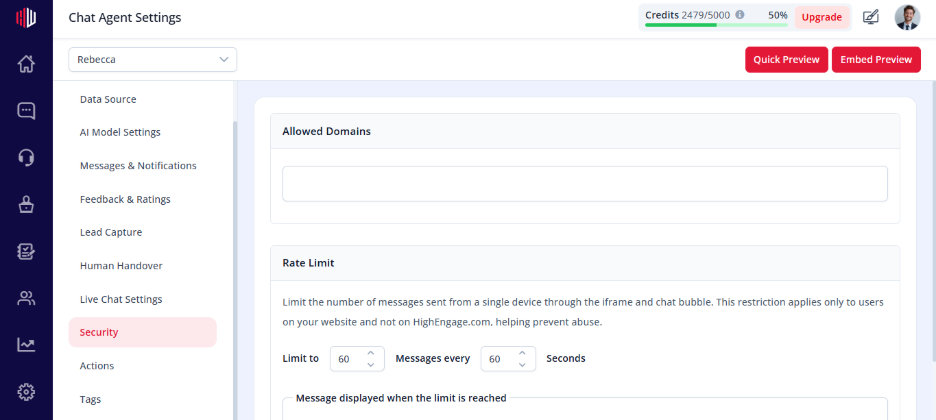
- Open Security
- Find Allowed Domains
- Add your domain(s)
Example:
yourwebsite.com
How it works #
- The chatbot loads only on listed domains
- If the script is used on any other site → it won’t appear
Adding multiple domains #
You can add more than one domain if needed:
- yourwebsite.com
- app.yourwebsite.com
- staging.yourwebsite.com
Important Notes #
- Domain must match exactly (including subdomain if used)
- If no domain is added, the chatbot may not load
- Useful for preventing unauthorized usage
Tips #
- Add both production and staging domains
- Double-check spelling to avoid loading issues
- Update this when deploying to new environments
Next, open your website and confirm that the chatbot loads only on the allowed domains.
If you have any questions, concerns, or need further clarification, please contact support@highengage.com for assistance.


