
This guide shows you how to add your HighEngage chatbot inside your web app.
Once added, users can chat with your AI agent directly within your product.
Basic Embed (Required) #
This is the standard setup for all web applications.
Steps
- Go to your Agent Dashboard
- Click Embed Preview
- Copy the script code
- Add the script to your app:
- HTML apps → Paste before </body>
- React / Angular / Vue → Add in your main layout or root file
- Single Page Apps → Add once globally
- Deploy your application
Your chatbot will now appear across your app.
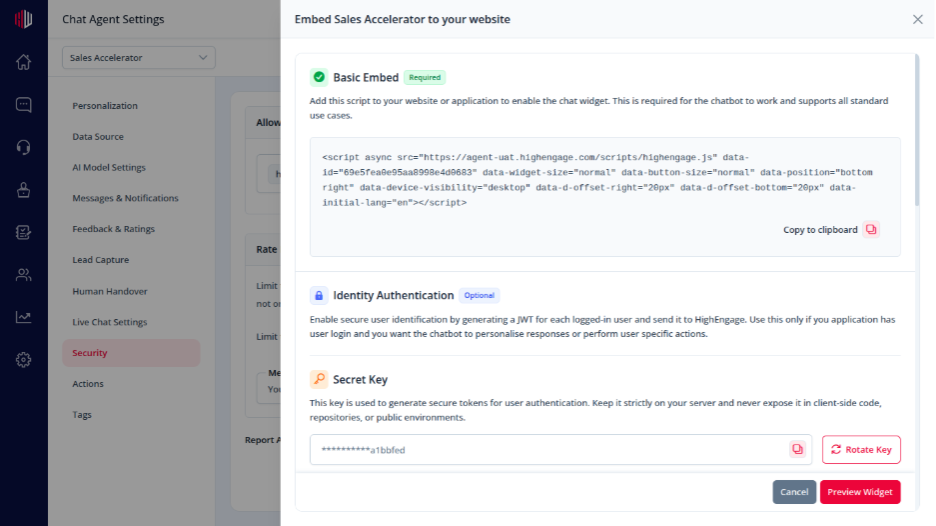
Authenticated Embed (Optional) #
Use this only if your app has logged-in users.
It allows your chatbot to:
- Identify users
- Show personalized responses
- Perform secure actions
How it works #
- Your backend generates a JWT token with user details
- The token is passed while loading the chatbot
- The chatbot recognizes the user automatically
Important Notes #
- Basic embed is required for the chatbot to work
- Authenticated setup is only needed for logged-in apps
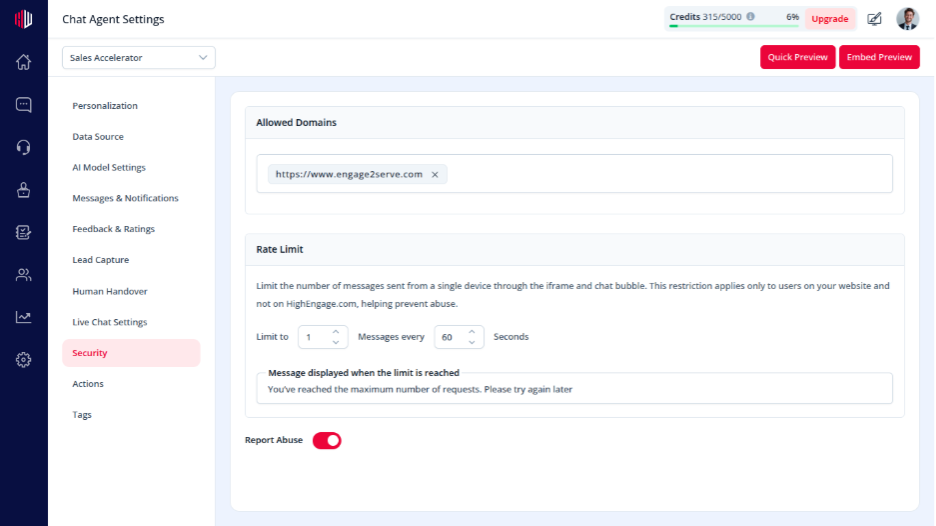
- Add your domain in Security → Allowed Domains
- Make sure your agent is enabled
Next, deploy your app and test the chatbot to confirm it loads and responds correctly.
If you have any questions, concerns, or need further clarification, please contact support@highengage.com for assistance.


