
This lets you control what users see when they hit the message limit.
A clear message helps avoid confusion and guides users on what to do next.
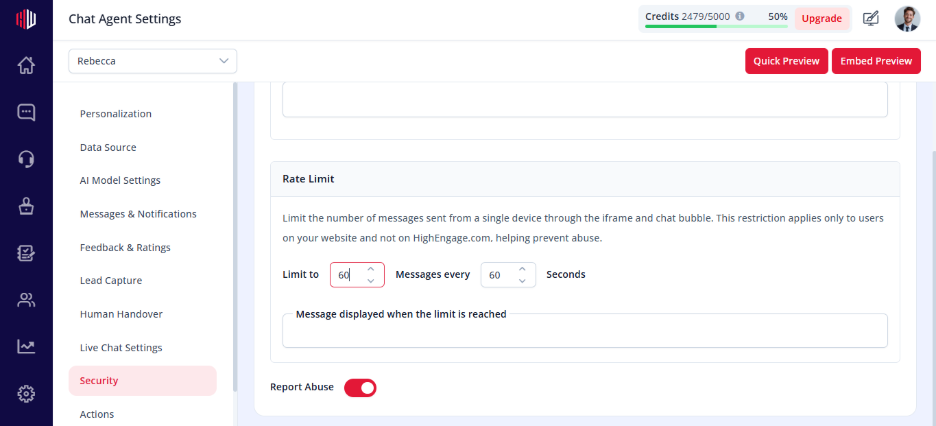
Steps #
- View your agent in the dashboard
- Go to Edit
- Open Security
- Find Rate Limit Message
- Enter your custom message between 1 to 60
How it works #
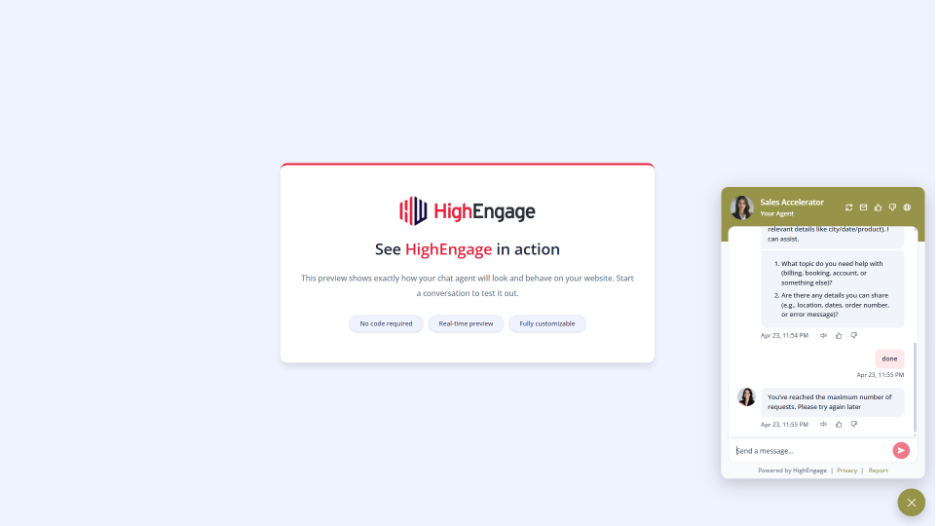
- When a user exceeds the message limit: Your custom message is shown
- Further messages are temporarily blocked until the limit resets
Example
“You’re sending messages too quickly. Please wait a moment and try again.”
Important Notes #
- Triggered only when rate limit is exceeded
- Should clearly explain the situation
- Keep it short and easy to understand
Tips #
- Use a polite and calm tone
- Avoid technical wording
- Optionally suggest what to do next
Example:
“Please wait a few seconds before sending another message.”
Next, use Preview and send multiple messages quickly to see how your rate limit message appears.
If you have any questions, concerns, or need further clarification, please contact support@highengage.com for assistance.


