
The HighEngage interface is designed to help you easily access all features — from building AI agents to managing conversations and analyzing performance.
Main Sections of the Interface #
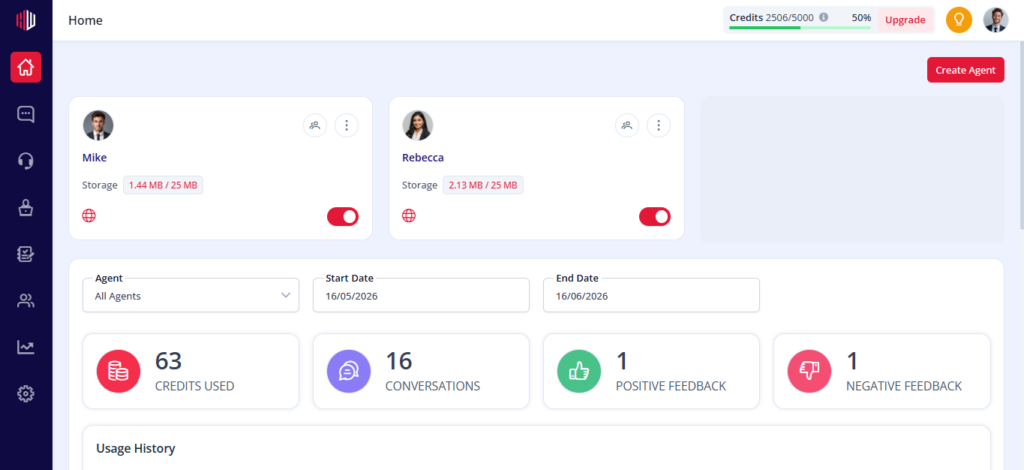
- Full interface with the left sidebar and main workspace highlighted
1. Sidebar Navigation #
The left sidebar is your primary navigation panel. It gives you access to all major sections:
- Home → Dashboard and performance overview
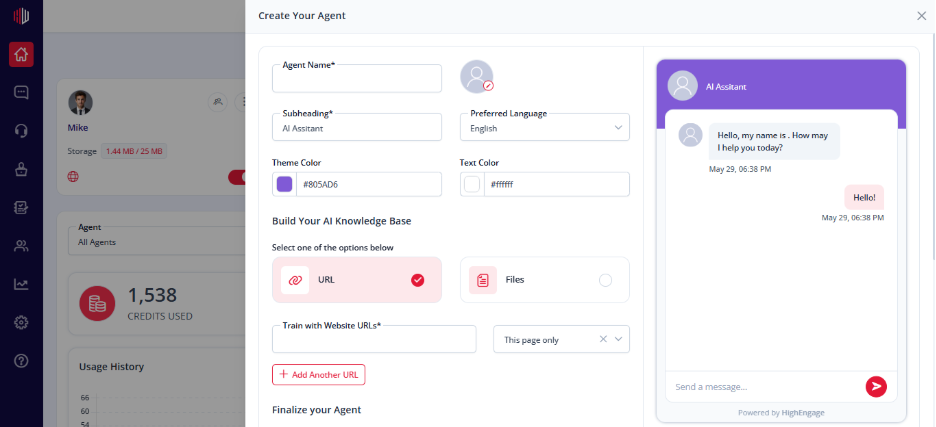
- Chatbots → Create and manage AI agents
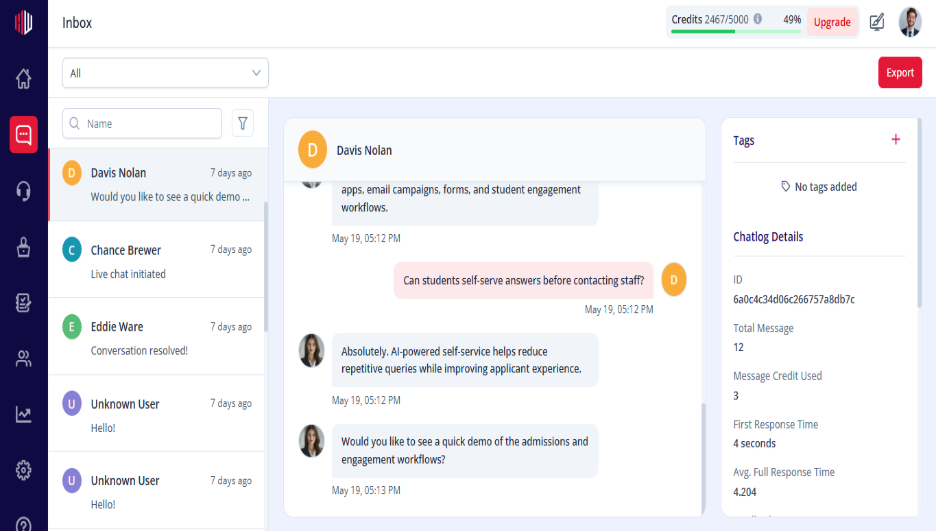
- Inbox → Conversation Monitoring & Response
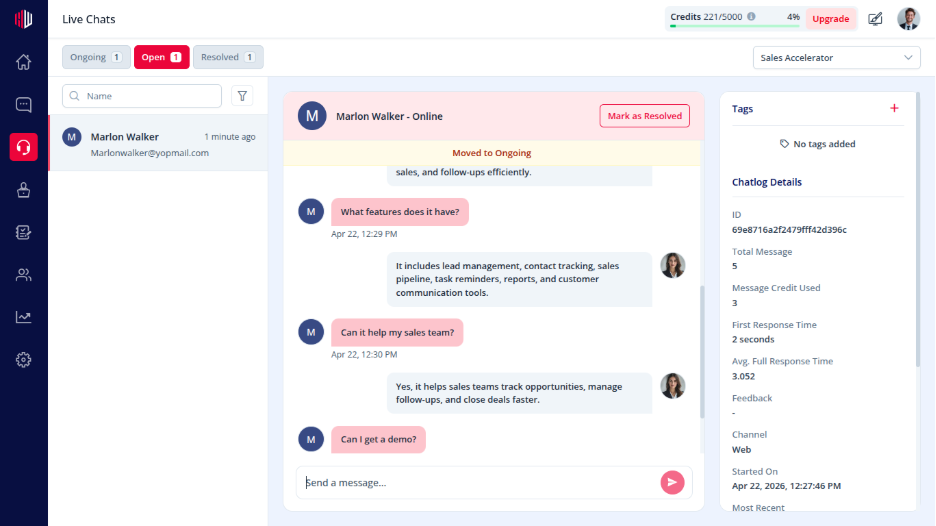
- Live Chats → View and respond to ongoing conversations
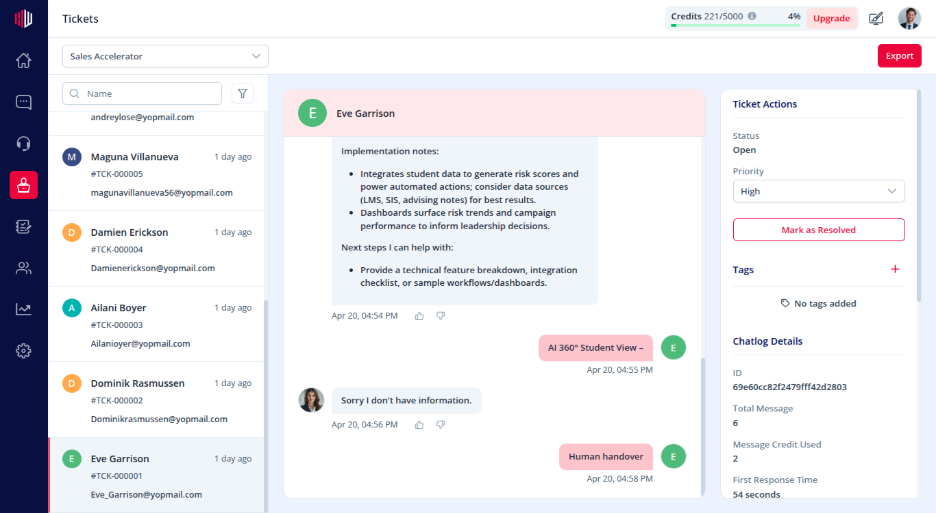
- Tickets → Manage escalated or unresolved queries
- Corrections → Improve responses based on feedback. Every time the AI agent is unable to answer a question, it is autogenerated as a correction so that you can update the relevant answer. Once it is done, the AI agent can answer a similar question next time.
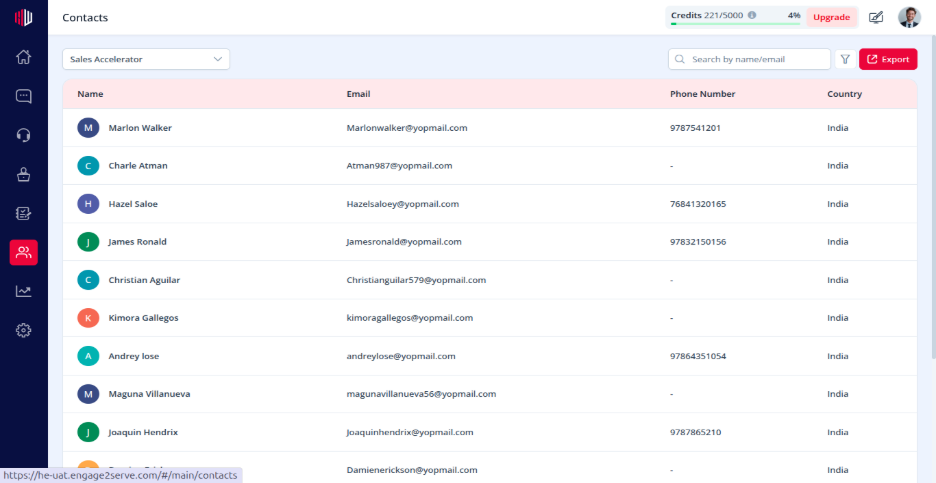
- Contacts → View and manage captured leads
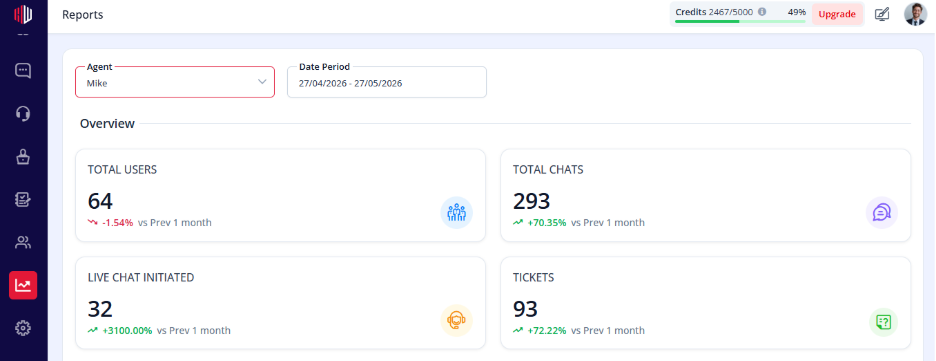
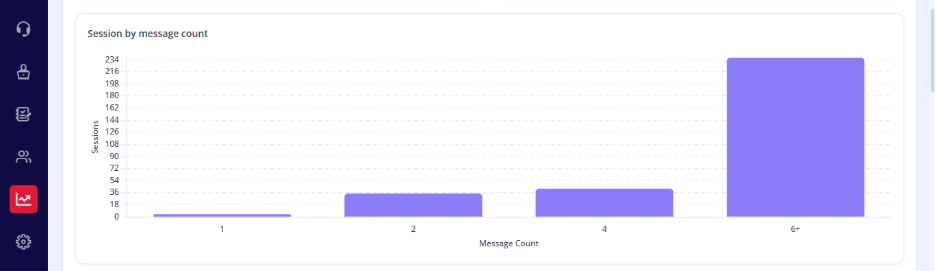
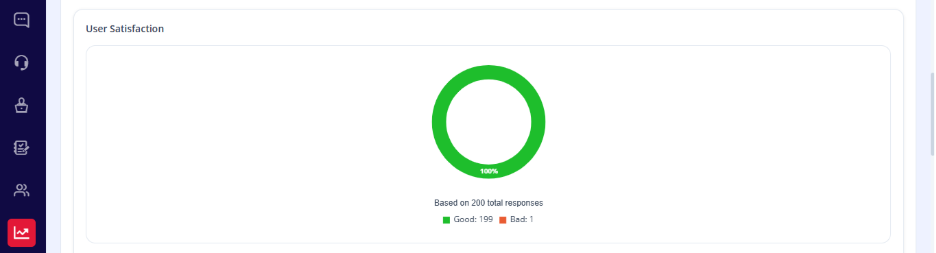
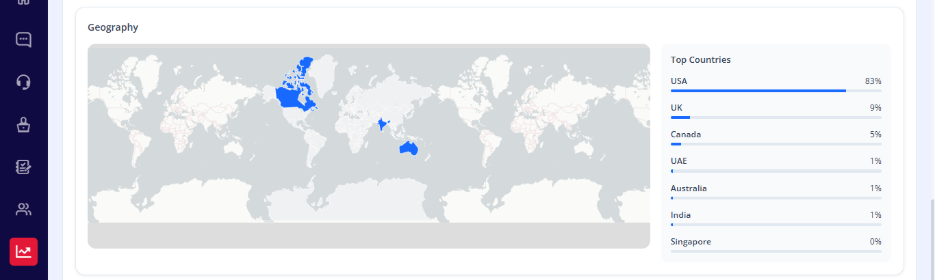
- Reports →Comprehensive Overview of Users, Conversations, Live Chat Activity, Ticket Performance, User Satisfaction, and Geographic Insights
- Settings → You can update your profile, add members, integrations, customize your notifications, or change your plan details.
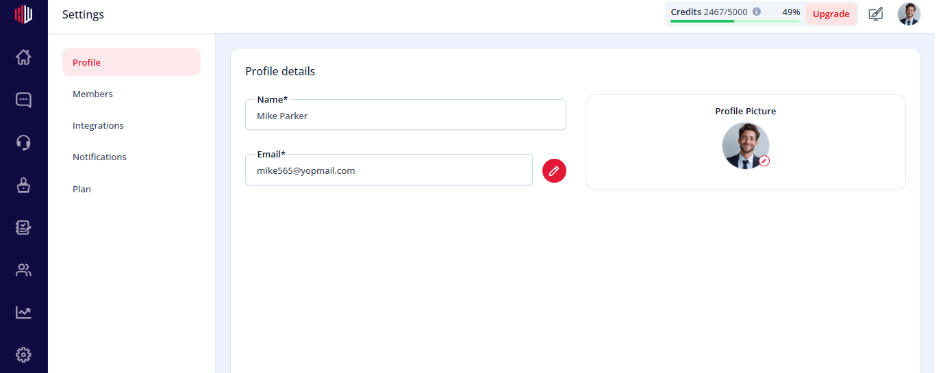
This sidebar stays consistent across the platform, so you can switch between sections quickly.
2. Top Bar #
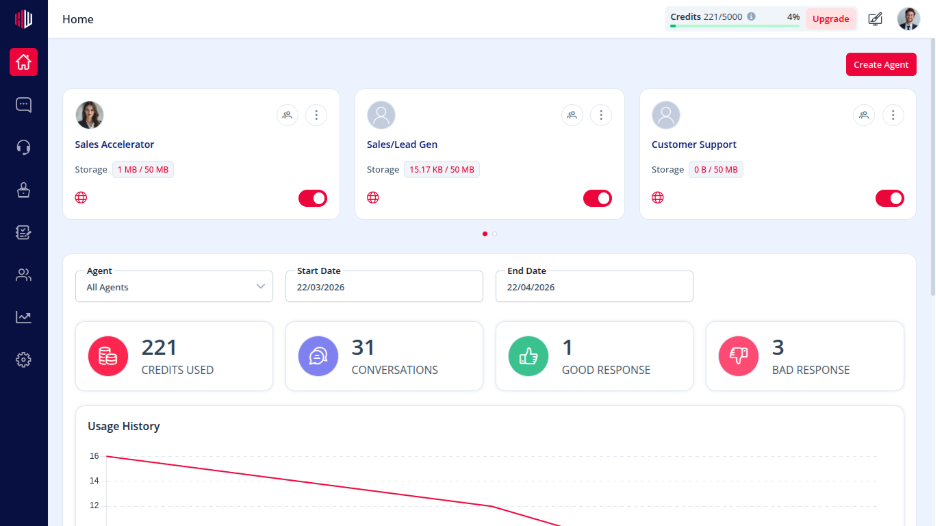
The top section of the interface provides quick actions and account-level controls:
- Usage indicator (credits consumed)
- Upgrade option
- Colour Scheme and font size
- Profile and account settings
Why Understanding Navigation is Important #
Knowing how to navigate the interface helps you:
- Work faster across different sections
- Manage agents and conversations efficiently
- Access key features without confusion
If you have any questions, concerns, or need further clarification, please contact support@highengage.com for assistance.


