Skip to content
HighEngage

Getting started

8
  • Navigating the HighEngage Interface
  • Overview of the HighEngage Dashboard 
  • Logging in to HighEngage
  • Understanding the 7-Day Free Trial in HighEngage 
  • Creating Your HighEngage Account
  • How HighEngage AI Agents Work 
  • Signing Up with Google vs Email
  • What is HighEngage? 

Onboarding & Setup

12
  • Sharing Agents With Your Team 
  • Collaboration 
  • Installing HighEngage on WordPress 
  • Embedding the AI Chat Widget 
  • Deployment & Installation 
  • Previewing Your AI Agent 
  • Understanding Agent Status (Active vs Disabled) 
  • Editing an Existing Agent 
  • Agent Management 
  • Setting Up Your New AI Agent 
  • Completing the HighEngage Onboarding Wizard 
  • Choosing Your Use Case Template 

Personalizing Your AI Chatbot

10
  • Opening Chat by Default 
  • Adding Privacy Policy Links 
  • Adding Contact Page Links 
  • Customizing Chat Input Placeholder Text 
  • Configuring Supported Languages 
  • Setting Chat Font Size 
  • Changing Chat Theme Colours 
  • Choosing Widget Icons 
  • Setting the Chat Widget Avatar 
  • Customizing Your Agent Name and Description 

Training Your AI Agent (Knowledge Base)

10
  • Fixing AI Answers When Data Is Incorrect 
  • How the “Refresh Agent” Training Process Works 
  • Understanding Data States: New, Trained, Removed 
  • Using Google Drive as a Data Source 
  • Creating Custom Q&A for Your Agent 
  • Re-Crawling Website Data 
  • Crawling an Entire Website vs Single Page 
  • Training Your Agent with Website URLs 
  • Adding Files to Train Your AI Agent 
  • How AI Knowledge Training Works in HighEngage 

Configuring AI Behavior

4
  • Writing Effective System Prompts 
  • Setting the AI Agent Role 
  • Understanding AI Model Performance vs Cost 
  • Configuring AI Behavior 

Chat Messages & Interaction Settings

12
  • Configuring Message-Level Avatar 
  • Automatically Restarting Chats After Inactivity 
  • Allowing Users to Restart Chats 
  • Setting Message Character Limits 
  • Changing Prompt Display Position 
  • Adding Custom Links to Chat 
  • Making Example Questions Disappear After First Message 
  • Adding Example Questions to Guide Users 
  • Changing Time Format in Chat 
  • Enabling Automatic Greetings 
  • Customizing the “No Data Found” Response 
  • Setting the Intro Message 

Lead Capture & Visitor Data

7
  • Viewing Captured Leads 
  • Customizing the Lead Thank-You Message 
  • Making Lead Fields Mandatory 
  • Creating Custom Lead Fields 
  • Collecting Name, Email, and Phone 
  • When Lead Capture Is Triggered 
  • How Lead Capture Works in HighEngage 

Human Handover & Escalation

6
  • Receiving Escalation Emails 
  • Customizing Escalation Messages 
  • Escalating After Message Threshold 
  • Escalating After Multiple Failed AI Responses 
  • Allowing Users to Request Human Assistance 
  • Enabling Human Support Escalation 

Feedback & Chat Ratings

7
  • Viewing Feedback Analytics 
  • Collecting Feedback from Idle Chats 
  • Triggering Post-Chat Surveys 
  • Configuring Negative Feedback Responses 
  • Customizing Survey Questions 
  • Collecting Conversation Ratings 
  • Enabling Message-Level Feedback 

Security & Safety

4
  • Customizing Rate Limit Messages 
  • Setting Chat Request Rate Limits 
  • Enabling Abuse Reporting 
  • Restricting Chatbot in Allowed Domains 

Troubleshooting & Best Practices

7
  • Chat Widget Not Loading on My Website 
  • Human Escalation Not Working 
  • Lead Capture Not Triggering 
  • Refresh Agent Not Updating Responses 
  • My Website Crawl didn’t Work 
  • AI Is Giving Incorrect Answers 
  • Why My AI Agent Is Not Answering Questions 

Deployment

3
  • Installing HighEngage on Your Web Application 
  • Installing HighEngage on WordPress 
  • Embedding the Chat Widget 

Account & Billing

2
  • Understanding Free Trial Limits 
  • Managing Your Subscription 

Integrations

6
  • Zoho Sprints Integration
  • Pipedrive Integration
  • Google Drive Integration
  • Calendly Integration
  • HubSpot Integration
  • Integrations
View Categories
  • Home
  • help
  • Feedback & Chat Ratings
  • Viewing Feedback Analytics 

Viewing Feedback Analytics 

1 min read

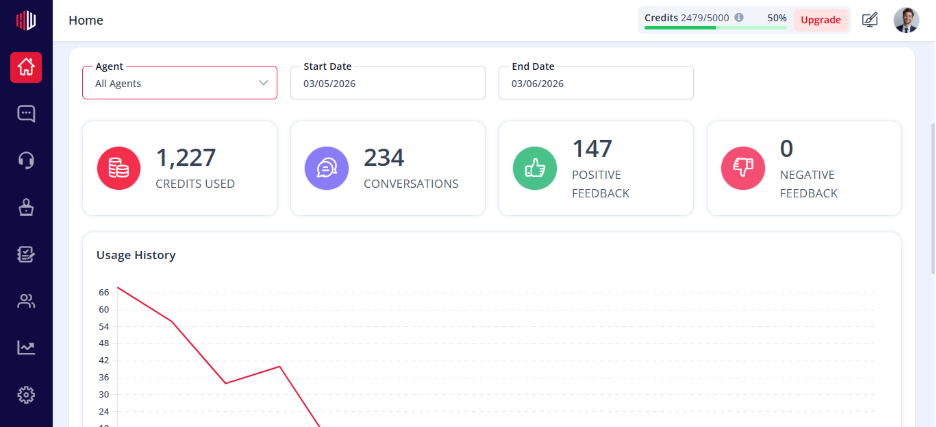
This lets you see how users rate your chatbot and where improvements are needed. 

It helps you track performance using real user feedback. 

Where to find it  #

  1. Go to Dashboard  
  1. view Analytics 
  1. Select your agent  

What you can view  #

  • Conversation ratings (positive vs negative)  
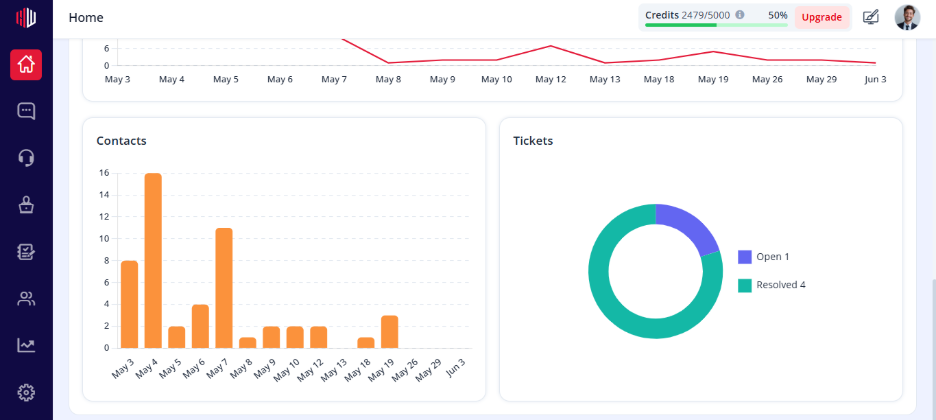
  • Survey responses  
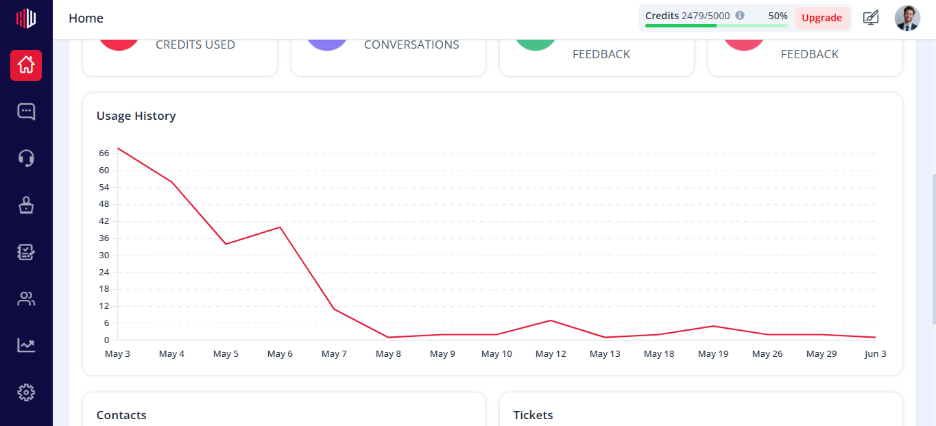
  • Feedback trends over time  

How to use it  #

  • Identify low-rated conversations  
  • Spot common issues or gaps in answers  
  • Prioritize what needs fixing  

Where to act on feedback  #

  • Go to Corrections → fix incorrect answers  
  • Update Data Source → improve knowledge  
  • Adjust Prompt / Role → refine behavior  

Important Notes  #

  • Data updates as new feedback is collected  
  • Each agent has its own analytics  
  • Works best when feedback features are enabled  

Tips  #

  • Review analytics regularly  
  • Focus on repeated negative patterns  
  • Combine ratings + survey responses for better insights  

Next, open a few low-rated conversations and fix them using Corrections.

If you have any questions, concerns, or need further clarification, please contact support@highengage.com for assistance. 

What are your Feelings

  • Happy
  • Normal
  • Sad

Share This Article :

  • Facebook
  • X
  • LinkedIn
  • Pinterest
Table of Contents
  • Where to find it 
  • What you can view 
  • How to use it 
  • Where to act on feedback 
  • Important Notes 
  • Tips 
HighEngage

All rights reserved