
This lets you control how time is shown in chat messages.
Choosing the right format makes timestamps easier to read for your users.
Steps #
- View your Agent in the dashboard
- Go to Edit
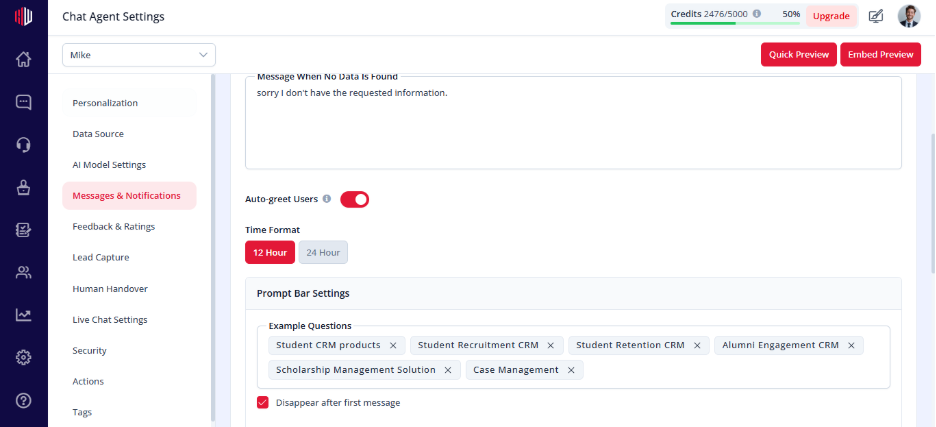
- Open Messages & Notifications
- Find Time Format
- Select one option:
- 12 Hour (AM/PM)
- 24 Hour
How it works #
- Applies to all chat timestamps
- Affects both user and AI messages
When to use #
- 12 Hour → Common for general audiences
- 24 Hour → Preferred for global or enterprise users
Important Notes #
- Changes apply instantly
- Does not affect timezone (uses your configured settings)
Next, use Quick Preview to check how timestamps appear in your chat.
If you have any questions, concerns, or need further clarification, please contact support@highengage.com for assistance.


