
Adds clickable links inside the chat for quick access to pages like FAQs, docs, or contact.
Steps #
- View your agent in the dashbboard
- Go to Edit
- Open Messages & Notifications
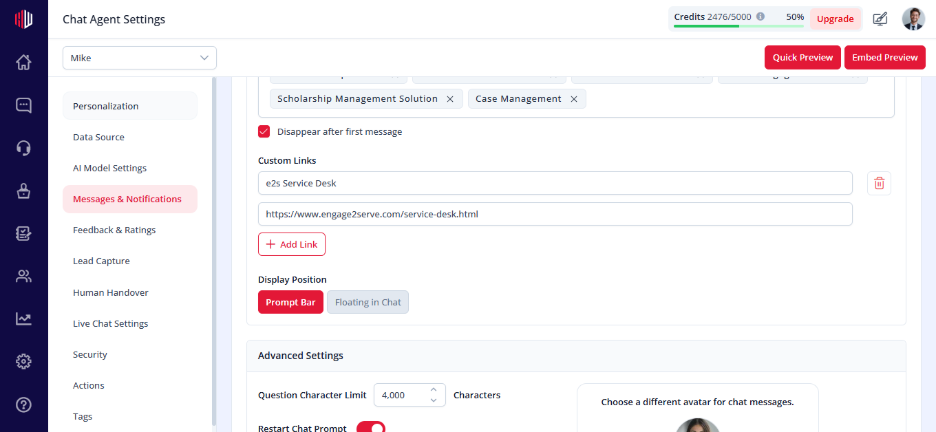
- Find Custom Links
- Click Add Link
- Enter:
- Link Text (what users see)
- URL (where it goes)
How it works #
- Links appear inside the chat interface
- Users can click to open pages instantly
- Useful for guiding users outside the chat
When to use #
- Help center or FAQ pages
- Pricing or product pages
- Contact or support links
Important Notes #
- URL must be valid
- You can add multiple links
- Placement depends on your chat layout settings
Tips #
- Use clear labels (View Pricing, Visit Help Center)
- Keep links relevant to user intent
If you have any questions, concerns, or need further clarification, please contact support@highengage.com for assistance.


