
What this does #
This lets you require users to provide specific details before continuing the chat.
It ensures you capture essential information during lead collection.
Steps #
- View your agent in the dashhboard
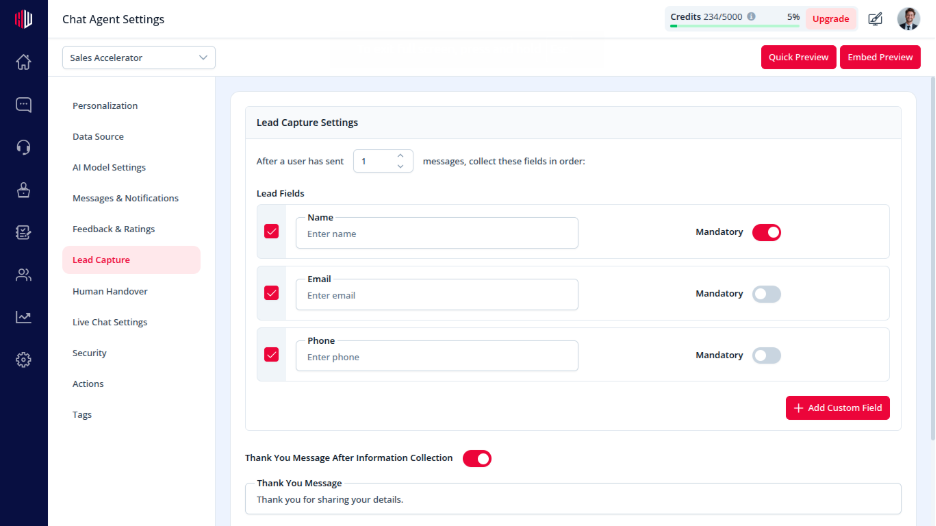
- Go to Edit
- Open Lead Capture
- Enable the field you want:
- Name
- Phone
- Custom Field
- Turn ON the Mandatory toggle for that field
How it works #
- The agent asks for the field during lead capture
- The user must enter a value to continue
- The chat pauses until the required field is completed
Example #
If Email is set as mandatory:
- User is asked for their email
- They cannot skip it
- They must enter a valid email to proceed
Important Notes #
- Mandatory is applied per field
- Too many required fields can reduce completion rates
- Email must follow a valid format
Tips #
- Make only key fields mandatory (e.g., Email)
- Keep other fields optional to reduce drop-offs
- Add a friendly transition message
Example:
“Just need a couple of details to help you better.”
Next, use Preview to test how mandatory fields behave in your chat.
If you have any questions, concerns, or need further clarification, please contact support@highengage.com for assistance.


