
What this does #
This lets you collect additional details beyond Name, Email, and Phone.
It helps you capture more useful information based on your business needs.
Steps #
- View your agent in the dashboard
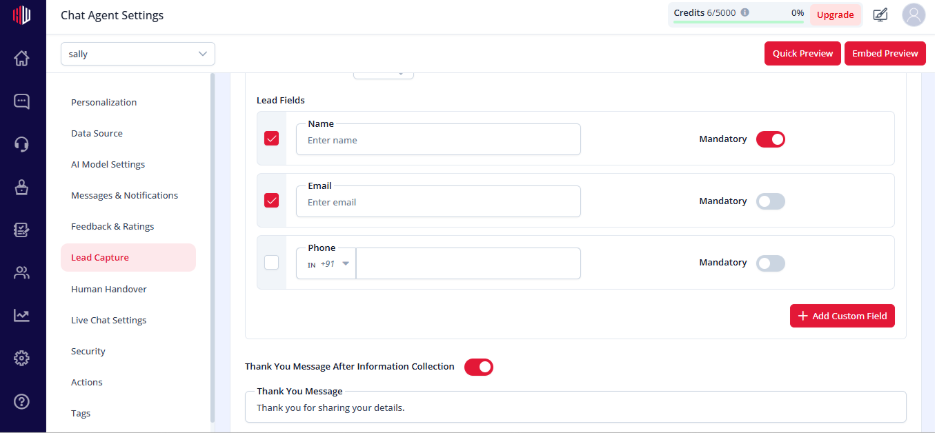
- Go to Edit
- Open Lead Capture
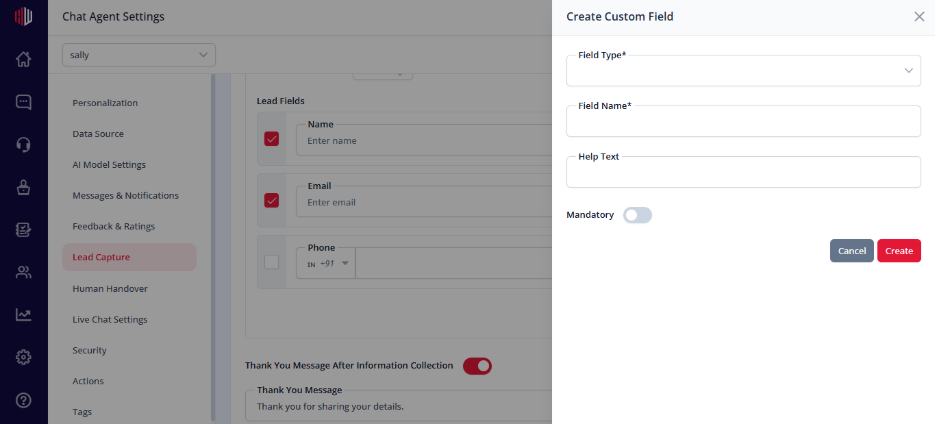
- Click + Add Custom Field
- Fill in the details:
- Field Type (Text, Number, Email, Dropdown, etc.)
- Field Name
- Help Text (optional)
- Mandatory (toggle)
- Click Create
How it works #
- Custom fields are added to your lead flow
- Asked one by one during the chat
- Follow the same behavior as default fields
Examples #
- Company Name
- Budget
- Use Case
- Preferred Contact Time
Important Notes #
- Fields can be mandatory or optional
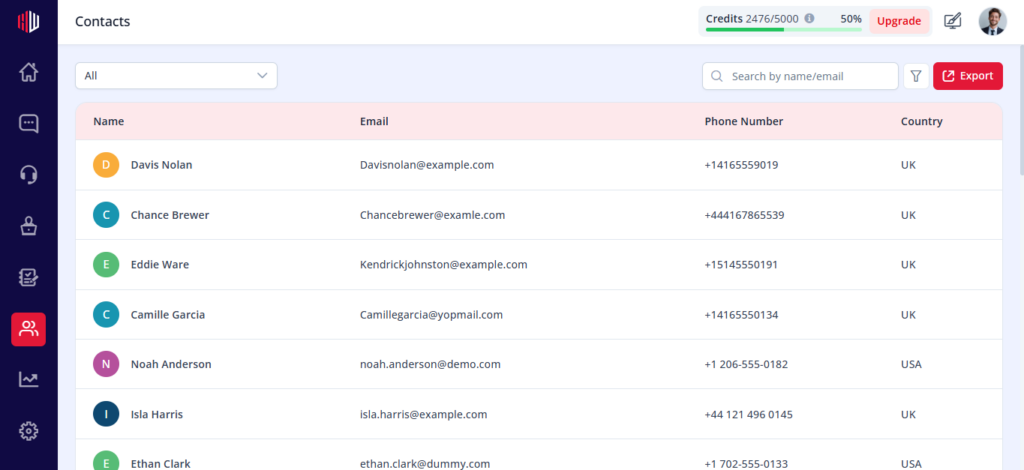
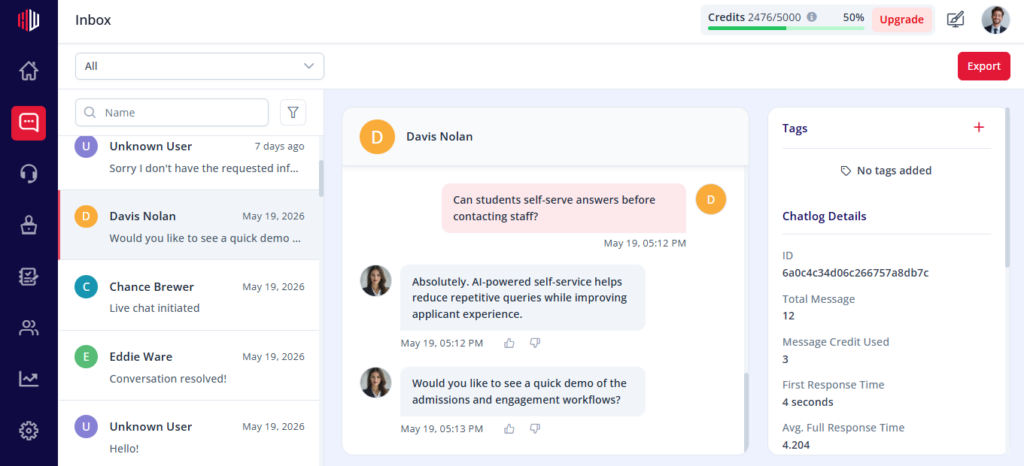
- Responses are saved in:
- Contacts
- Inbox (User Details)
- Field type controls how users enter data
Tips #
- Keep fields relevant and minimal
- Use dropdowns for structured inputs
- Avoid asking too many questions
Next, use Preview to test if your custom fields appear and work correctly.
If you have any questions, concerns, or need further clarification, please contact support@highengage.com for assistance.


