
You can update your AI agent at any time to improve its responses, change its behavior, or adjust its configuration.
How to Edit an Agent #
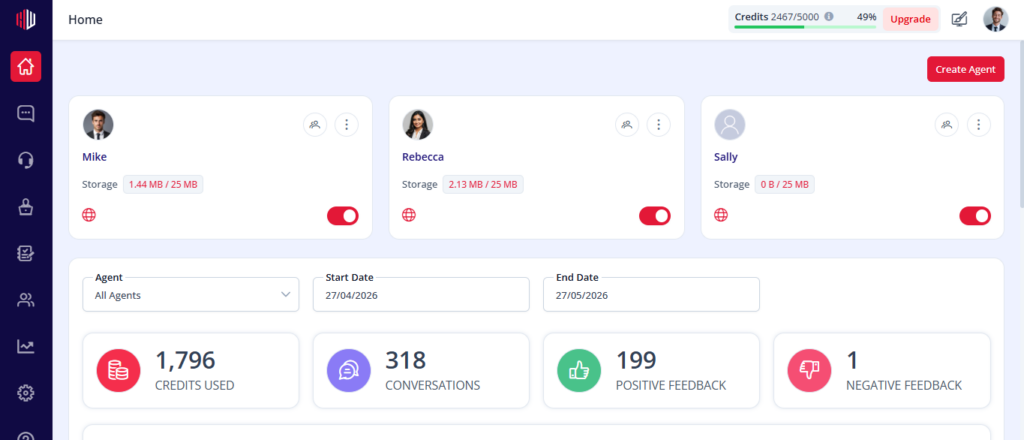
Agent card with three-dot menu → Edit Agent
- Go to the Dashboard
- Locate the agent you want to update
- Click the three-dot menu on the agent card
- Select Edit
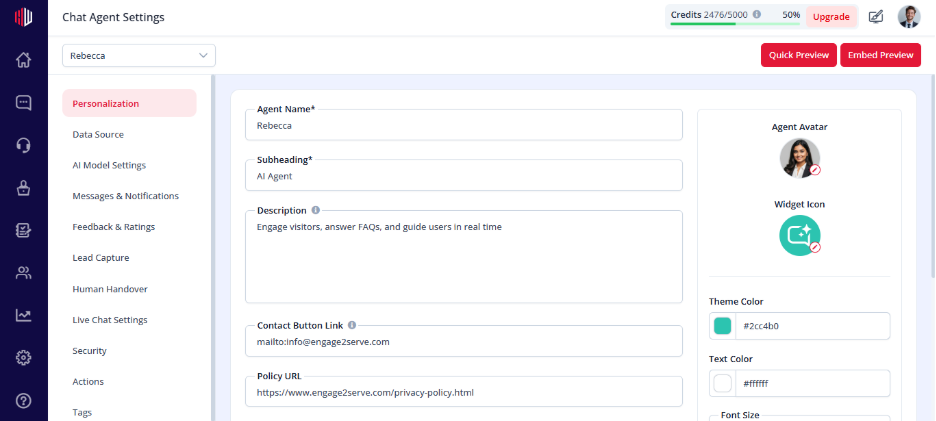
You’ll be taken to the Agent Settings page.
What You Can Edit #
Inside Agent Settings, you can update different aspects of your agent:
Personalization #
- Agent name, description, and appearance
- Theme, colors, and branding
Data Source #
- Add or remove files, URLs, or Q&A
- Click Refresh Agent to apply changes
AI Model Settings #
- Adjust response behavior and model selection
Messages & Notifications #
- Update greeting, fallback messages, and prompts
Workflows #
- Define how the agent responds to specific scenarios
Lead Capture, Live Chat, and More #
- Configure how your agent collects leads or hands over to humans
When Should You Edit an Agent? #
- When responses are not accurate
- When your business information changes
- When you want to add new workflows or integrations
- When improving user experience
Important Note #
Changes to settings may not reflect immediately in responses until:
- Data is updated and Refresh Agent is clicked (for data sources)
- Workflows or settings are saved
Best Practices #
- Test your agent after making changes
- Update data regularly to keep responses accurate
- Use workflows for better control over responses
If you have any questions, concerns, or need further clarification, please contact support@highengage.com for assistance.


