
This lets you control where example questions and suggestions appear in the chat.
It helps you decide how visible and interactive your prompts should be.
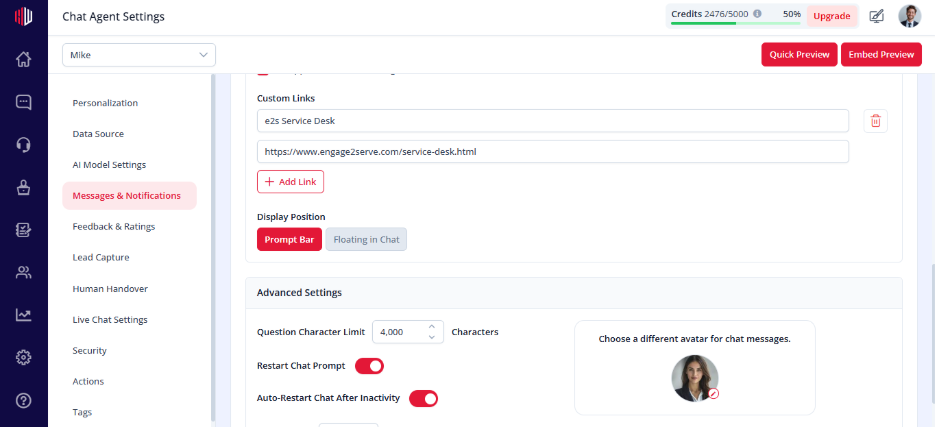
Steps #
- View your agent in the dashboard
- Go to Edit
- Open Messages & Notifications
- Find Display Position
- Choose one option:
- Prompt Bar
- Floating in Chat
Options explained #
Prompt Bar (Default) #
- Suggestions appear above the input field
- Clean and less distracting
Best for simple guidance.
Floating in Chat #
- Suggestions appear inside the chat as cards
- More visible and interactive
Best for guided or conversion-focused flows.
Important Notes #
- Applies to Example Questions and suggestions
- Changes are visible immediately
- Works best when example questions are added
Tips #
- Use Prompt Bar for subtle guidance
- Use Floating in Chat for stronger call-to-action
Next, use Quick Preview to see how the display position looks in your chat.
If you have any questions, concerns, or need further clarification, please contact support@highengage.com for assistance.


