
This lets you show suggested questions in the chat so users know what to ask.
It helps users get started quickly and keeps conversations on track.
Steps #
- View your agent in the dashboard
- Go to Edit
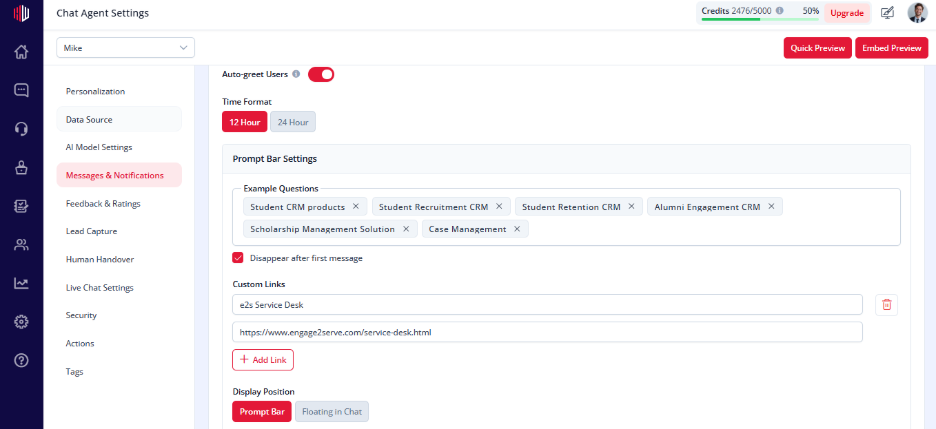
- Open Messages & Notifications
- Find Example Questions
- Add your questions (press Enter after each one)
Example:
- What are your pricing plans?
- How can I contact support?
- Can I book a demo?
- (Optional) Enable Disappear After First Message
How it works #
- Questions appear in the chat (based on your display settings)
- Users can click a question to send it instantly
- Reduces friction and guides the conversation
Important Notes #
- Questions must not be empty
- You can add multiple suggestions
- Placement depends on Display Position
Tips #
- Use common user queries
- Keep them short and clear
- Match them to your agent’s role
Next, use Quick Preview to see how the questions appear in your chat.
If you have any questions, concerns, or need further clarification, please contact support@highengage.com for assistance.


