
This lets your AI agent learn from files stored in your Google Drive.
It’s useful when your documents are already organized in Drive and you want to use them without uploading again.
Steps #
- View your agent in the dashboard
- Go to Edit
- Open Data Source
- Select the Google Drive tab
- Click Connect Google Drive
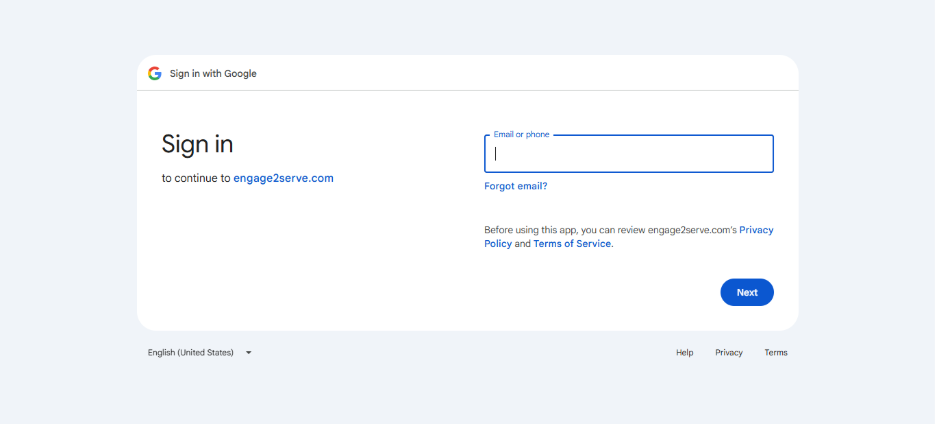
- Sign in and allow access
- Select the files or folders you want to use
- Click Add
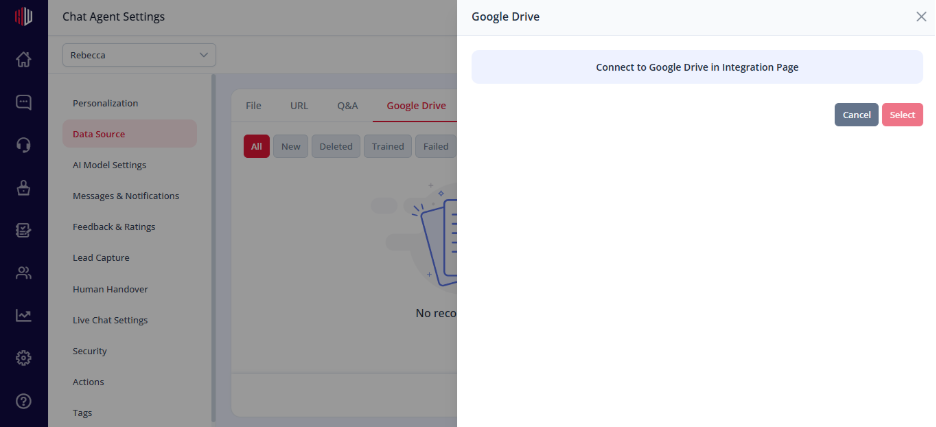
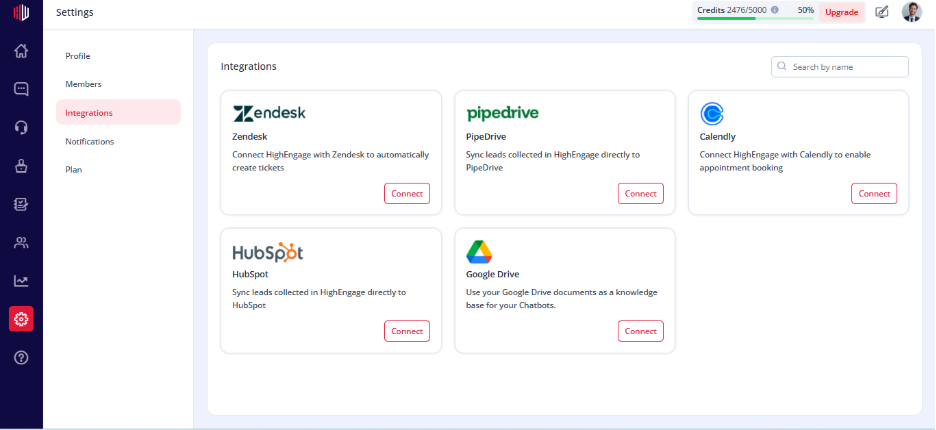
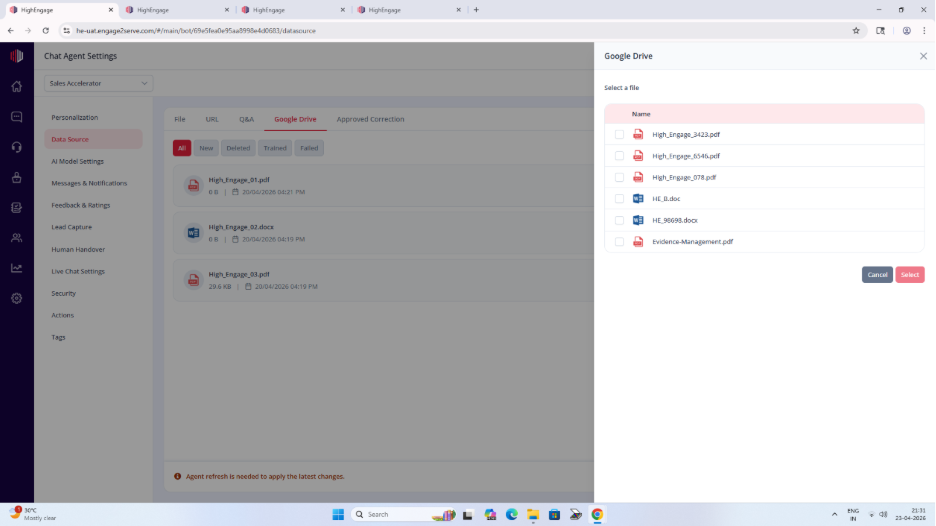
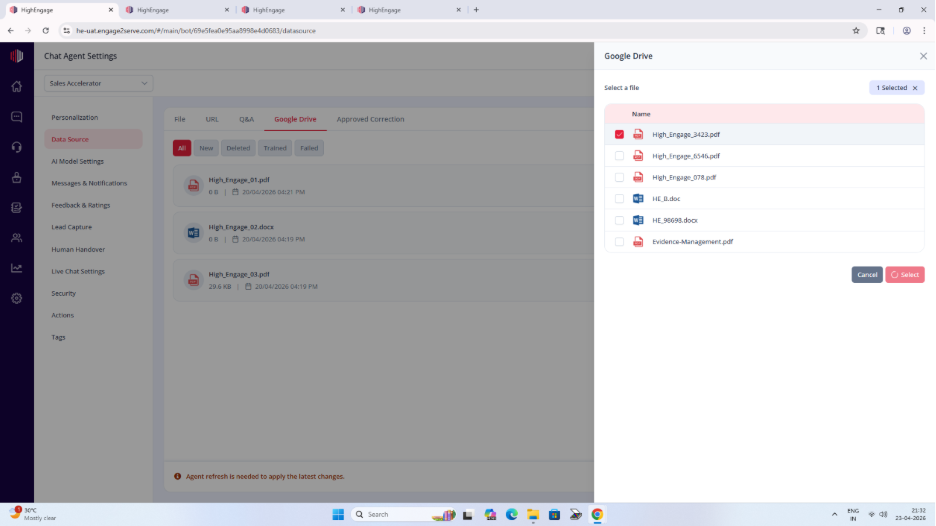
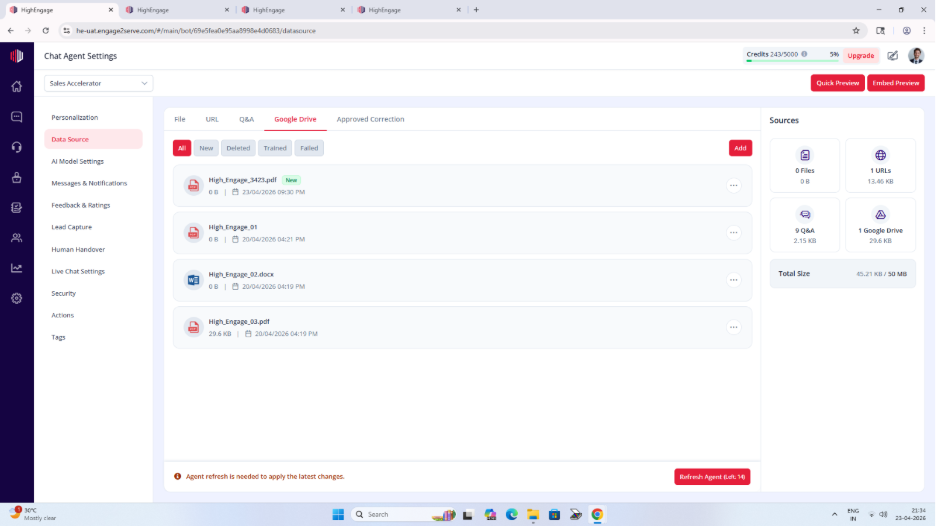
Your files will appear under New
Train the data #
To make the files usable: Click Refresh Agent
After this:
- Files move to Trained
- AI can use them to answer questions
Important Notes #
- Only selected files are used by the AI
- Files must be trained before they are used
- If files are updated in Drive:
- Re-sync
- Click Refresh Agent again
- Access depends on your Google account permissions
Tips #
- Use well-structured documents
- Keep files relevant to your use case
- Avoid duplicate or outdated content
Next, go to Preview and test if your agent answers using your Google Drive data.
If you have any questions, concerns, or need further clarification, please contact support@highengage.com for assistance.


