
This lets your chatbot support multiple languages so users can interact in their preferred language.
It helps you handle a wider audience without creating separate agents.
Steps #
- Go to your Agent Dashboard
- Click Edit
- Open Personalization
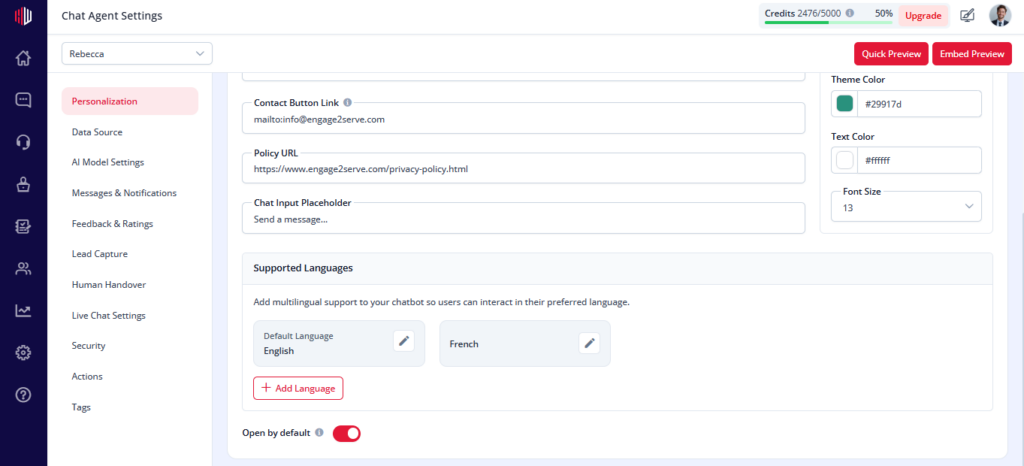
- Find Supported Languages
- Click Add Language
- Select the languages you want to support
- (Optional) Set a Default Language
- Click Save
How it works #
- The chatbot loads in the default language
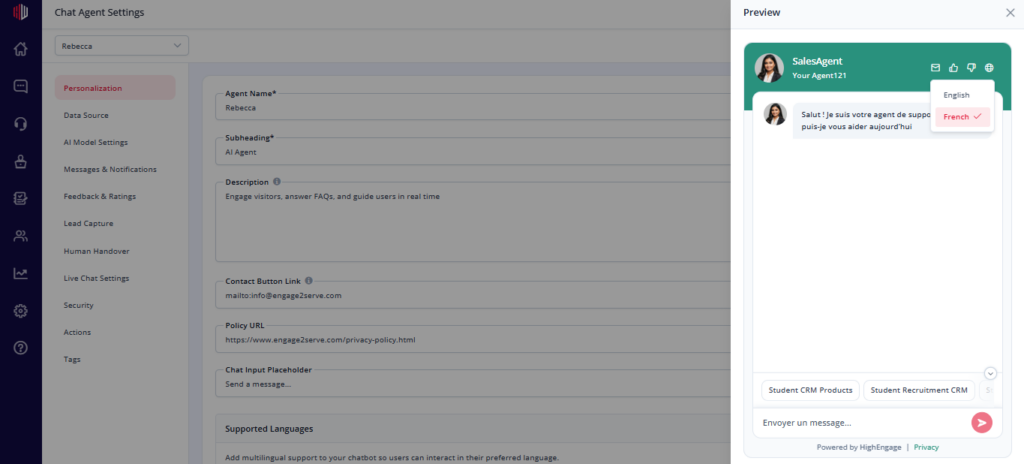
- Users can switch languages during the chat
- Chat UI updates based on the selected language
Important Notes #
- Default language is English (can be changed)
- Only added languages are available to users
- For accurate answers, your Data Source should include content in those languages
Next, use Quick Preview to test your chatbot in different languages.
Configuring Supported Languages #
HighEngage supports multi-language configuration for chatbots.
By default:
- The chatbot language is set to English
You can:
- Add multiple supported languages
- Select a different default language
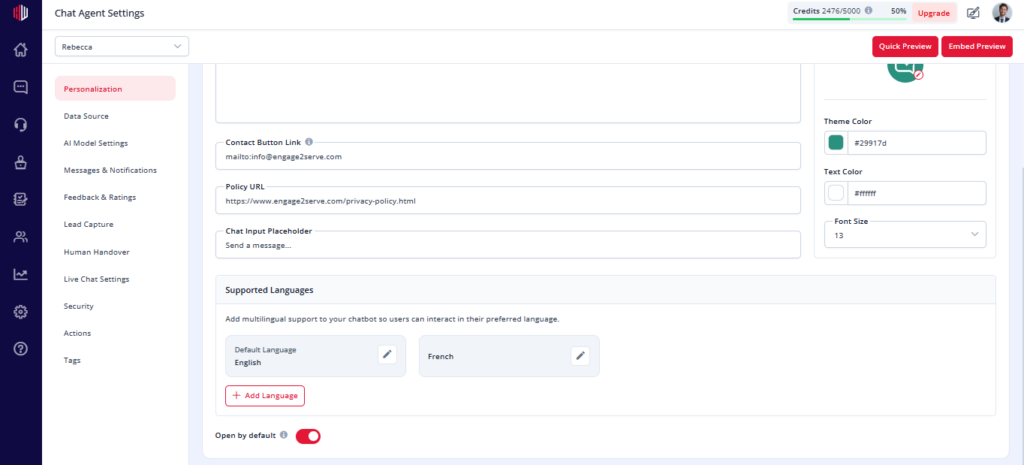
Once configured:
- Users can switch languages directly within the chat widget
- All UI elements and placeholder text update dynamically based on the selected language
This feature enables businesses to engage with a broader audience and provide localized experiences.
If you have any questions, concerns, or need further clarification, please contact support@highengage.com for assistance.


