
This lets you customize how your chat widget looks, so it matches your brand.
Good color choices make the chat easier to read and more visually consistent with your website.
Steps #
- Go to your Agent Dashboard
- Click Edit
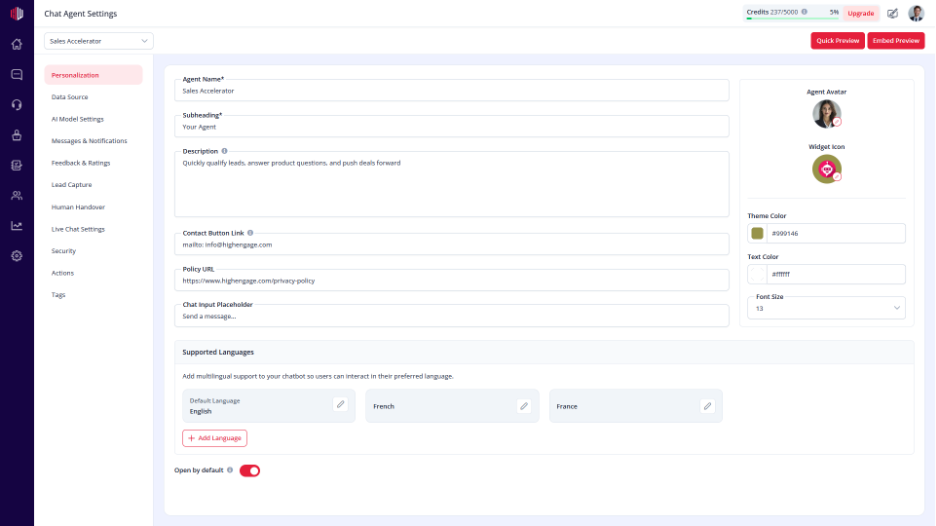
- Open Personalization
- Update the following:
- Theme Color
Main color of the chat
- Text Color
Colour of the text inside the chat
What to consider #
- Match your brand colours
- Ensure text is easy to read
- Avoid low contrast (e.g., light text on light background)
Important Notes #
- Changes apply instantly to the widget
- Affects header, buttons, and highlights
- Works along with your Widget Icon and Avatar
Next, use Embed Preview to see how your colors look on your website
If you have any questions, concerns, or need further clarification, please contact support@highengage.com for assistance.


