
This lets you control what users see when a conversation is handed over to a human.
Clear messages make the transition smooth and set the right expectations.
Steps #
- View your agent in the dashboard
- Go to Edit
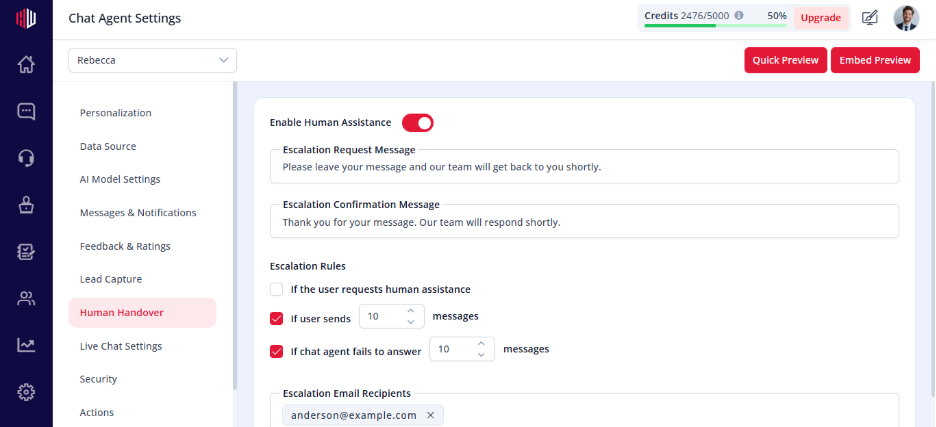
- Open Human Handover
- Find the message fields:
- Escalation Request Message
- Escalation Confirmation Message
5. Enter your custom text
How it works #
- Escalation Request Message → shown when escalation is triggered
(asks the user to submit their request)
- Escalation Confirmation Message → shown after the user submits
(confirms that your team will follow up)
Example #
Request Message:
“Would you like to connect with our team? Please share your message.”
Confirmation Message:
“Thanks! Our team will get back to you shortly.”
Important Notes #
- These messages appear during every escalation flow
- Keep them short and easy to understand
- Should match your brand tone
Tips #
- Set clear expectations (response time, next steps)
- Keep the tone friendly and helpful
- Avoid long or complex messages
Next, use Preview to trigger escalation and check how your messages appear.
If you have any questions, concerns, or need further clarification, please contact support@highengage.com for assistance.


