
What this does #
This guide shows you how to give your team access to specific agents.
Once shared, they can handle chats, tickets, and conversations for that agent.
How sharing works #
Agents are not visible to everyone by default.
You choose which team members can access each agent.
Steps
- Go to Dashboard
- Find the agent you want to share
- Click Manage Members on the agent card
- Select the team members
- Click add
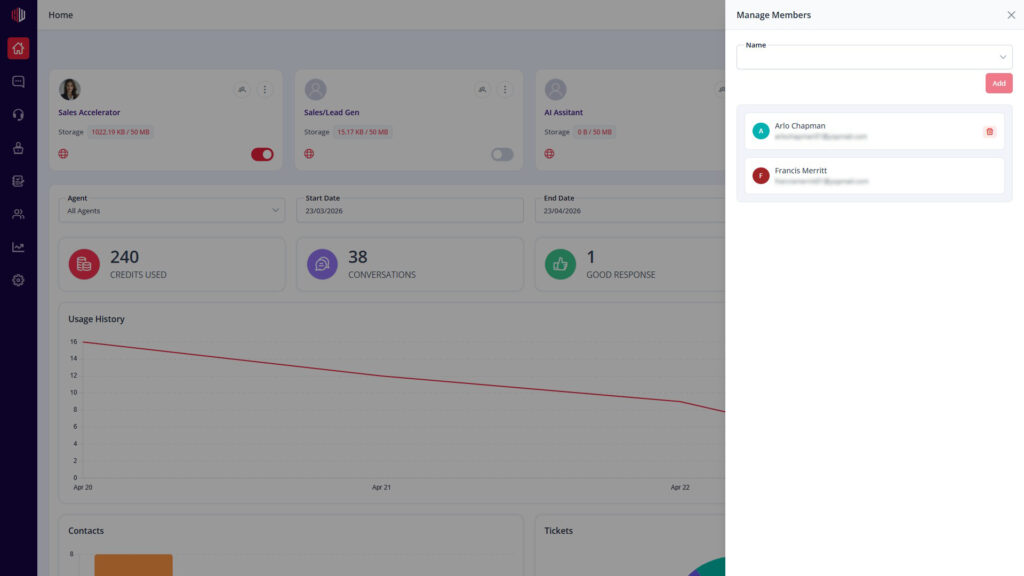
The selected users will now see this agent in their account.
What team members can do #
Members #
- View conversations in Inbox
- Handle Live Chats
- Manage Tickets
- Review Corrections
- View Contacts
Admins #
- Full access to the agent
- Can edit configuration
- Can manage members
Important Notes #
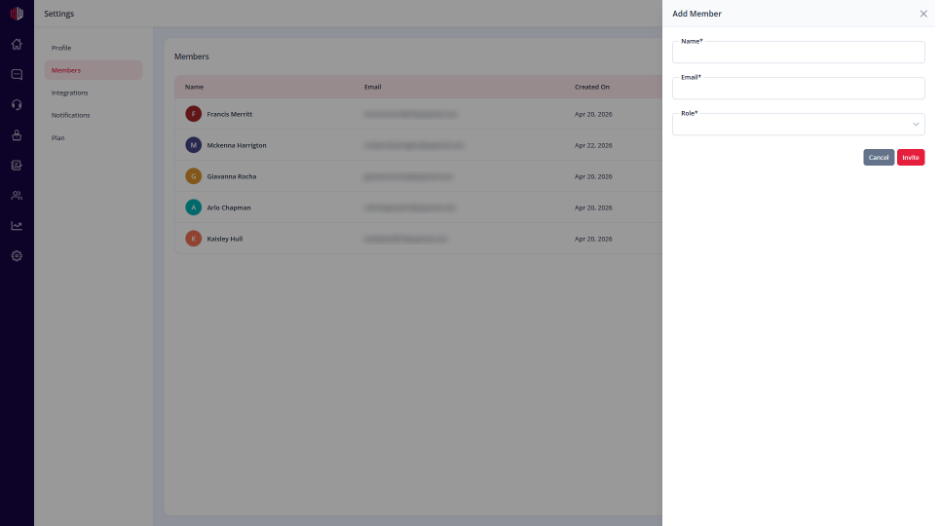
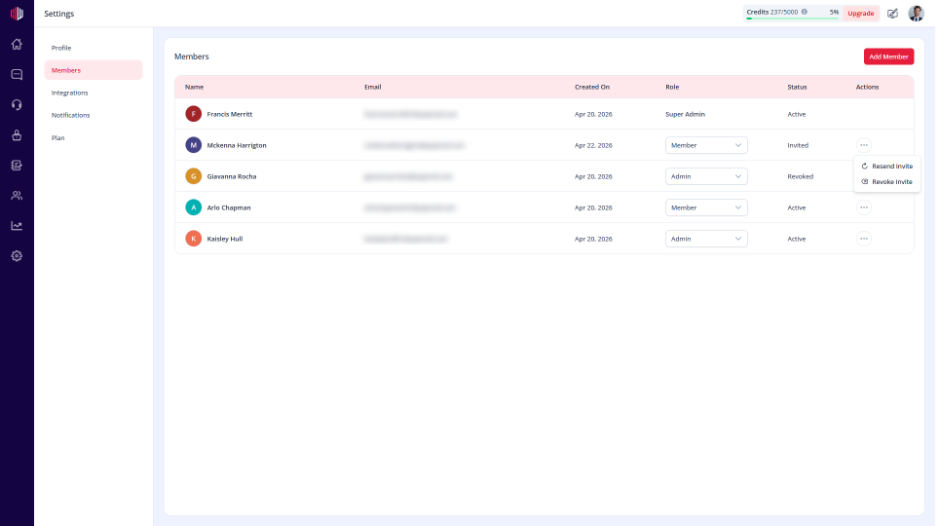
- Users must be invited first from Settings → Members
- Members only see assigned agents
- Removing a user removes access instantly
Next, ask your team to open the agent in Inbox and start handling conversations.
If you have any questions, concerns, or need further clarification, please contact support@highengage.com for assistance.


