
The Pipedrive integration allows you to connect your Pipedrive account with HighEngage, enabling leads captured through your AI agent to be automatically synchronized with your Pipedrive CRM. This helps your sales and marketing teams manage leads more efficiently without manual data entry.
Before You Begin #
Ensure you have:
- An active HighEngage account.
- A Pipedrive account with access to your personal API token.
Connecting Pipedrive #
- Log in to your Pipedrive account.
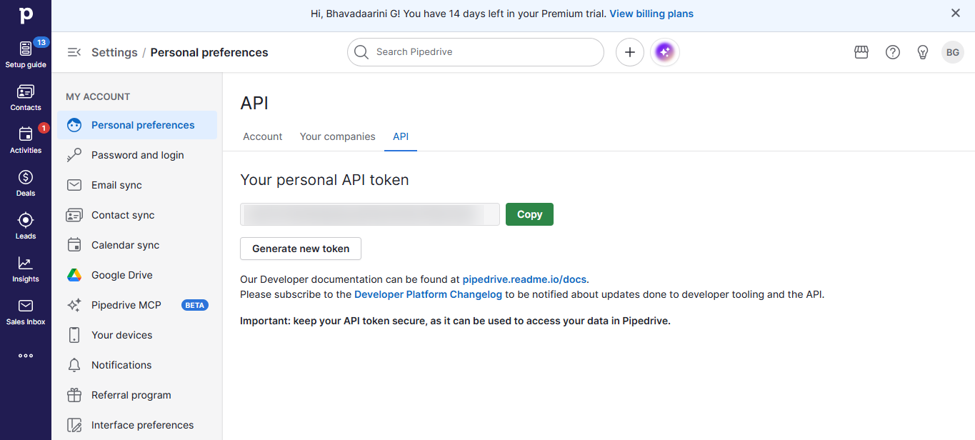
- Navigate to Settings → Personal preferences → API.
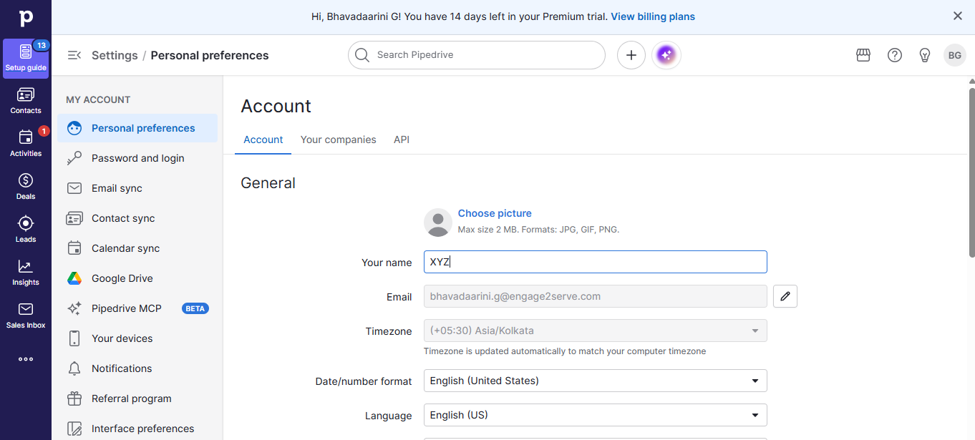
- Click Copy next to Your personal API token to copy it to your clipboard.
- Log in to your HighEngage account.
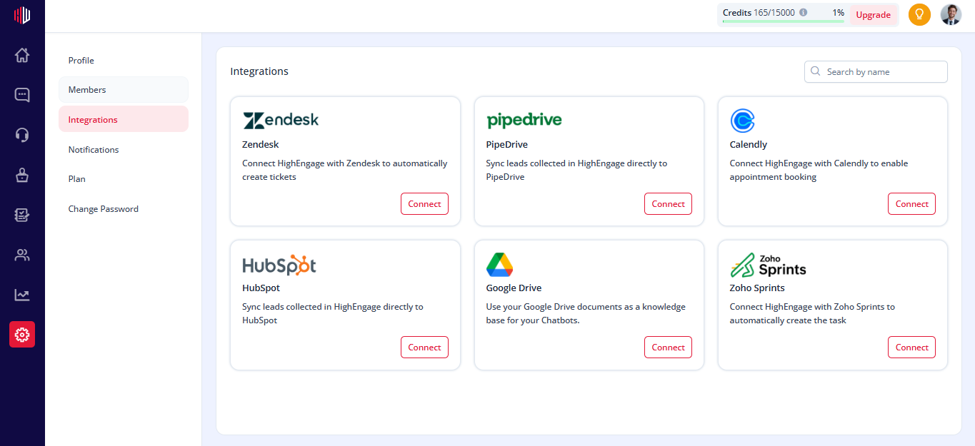
- Navigate to Settings → Integrations.
- Locate Pipedrive and click Connect.
- Paste the Pipedrive API token you copied earlier into the Authorization Key field.
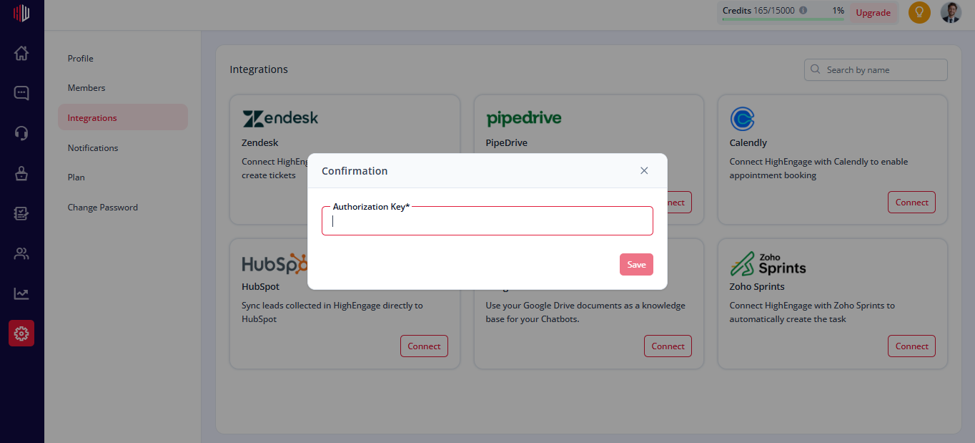
- Click Save.
- The integration status will change to Connected.
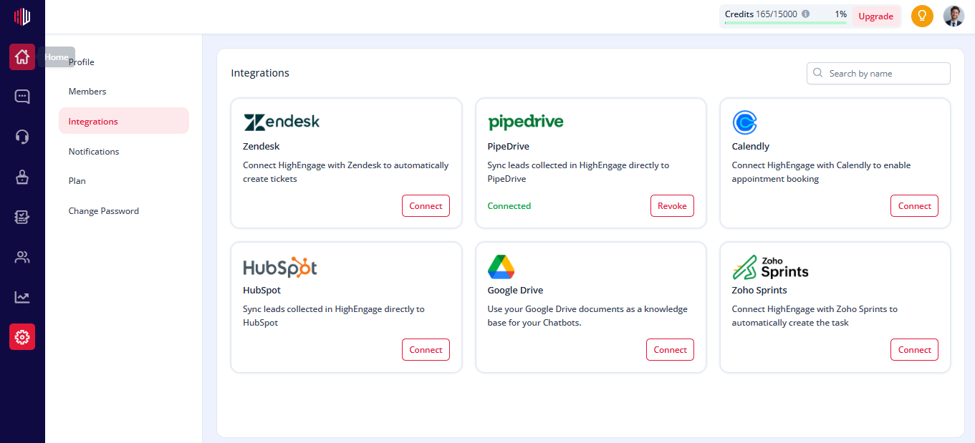
Your Pipedrive account is now successfully connected. To enable it for your agent, follow the steps below:
10. View your agent in the dashboard, click edit.
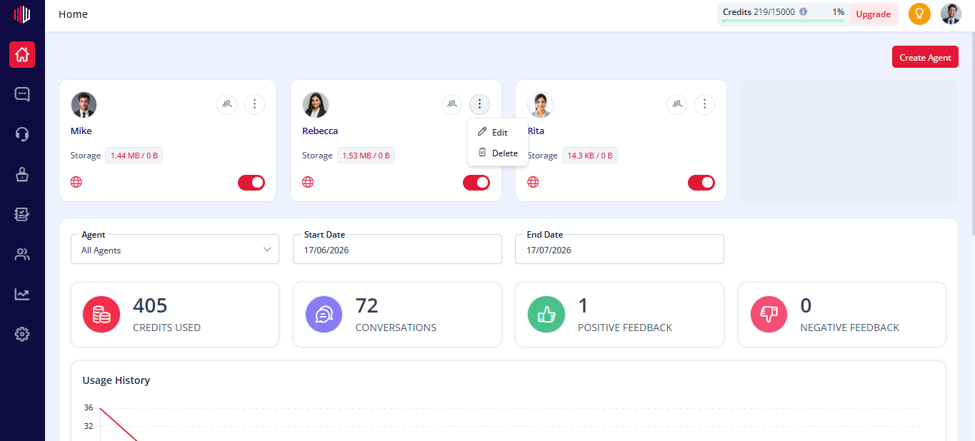
11. Go to actions.
12. Find Pipedrive.
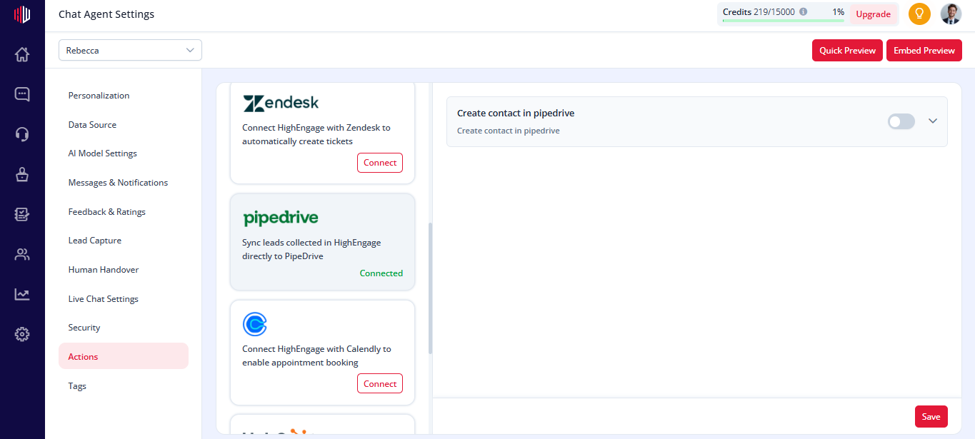
13. Enable Pipedrive by clicking the toggle button.
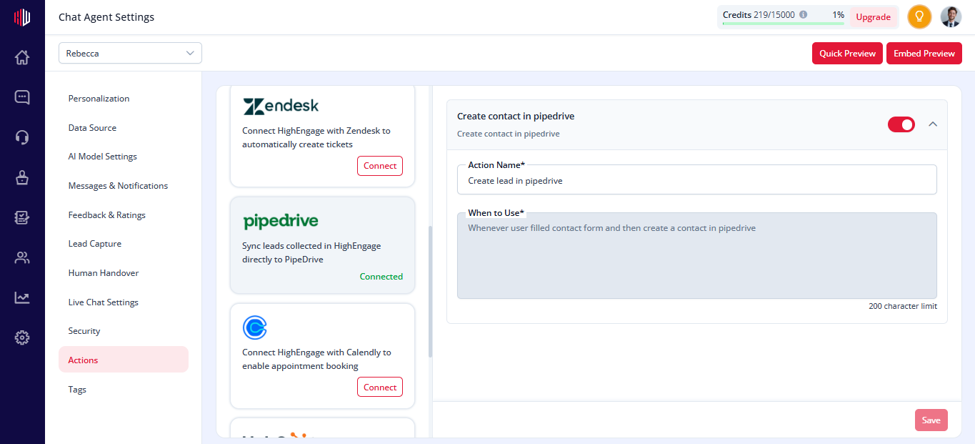
14. Click save.
Pipedrive integration is now enabled for your agent.
How It Works #
- A visitor interacts with your AI agent on your website.
- During the conversation, the AI agent requests the user’s contact information through the Lead Capture Form.
- The visitor completes the form by entering details such as Name, Email Address, and Phone Number.
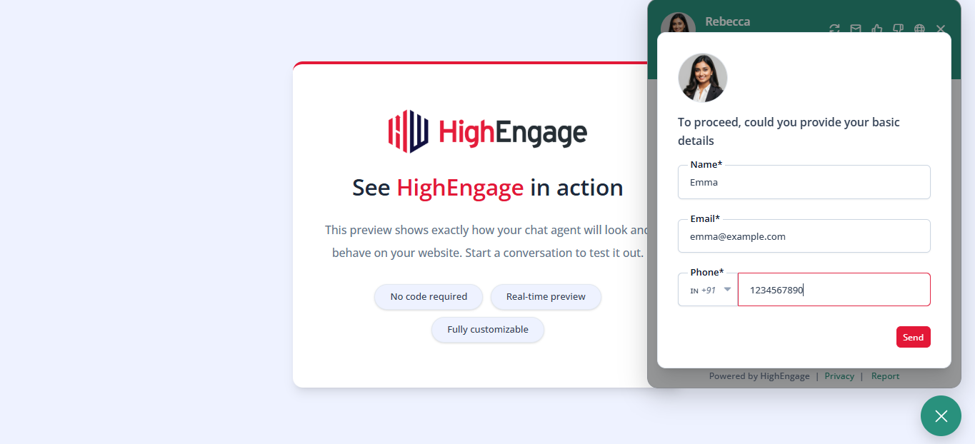
- Once the form is submitted, HighEngage captures the lead information.
- If the Create Contact in Pipedrive action is enabled, HighEngage automatically sends the captured lead details to your connected Pipedrive account.
- A new contact is created in Pipedrive → Contacts → People, allowing your sales team to follow up without any manual data entry.
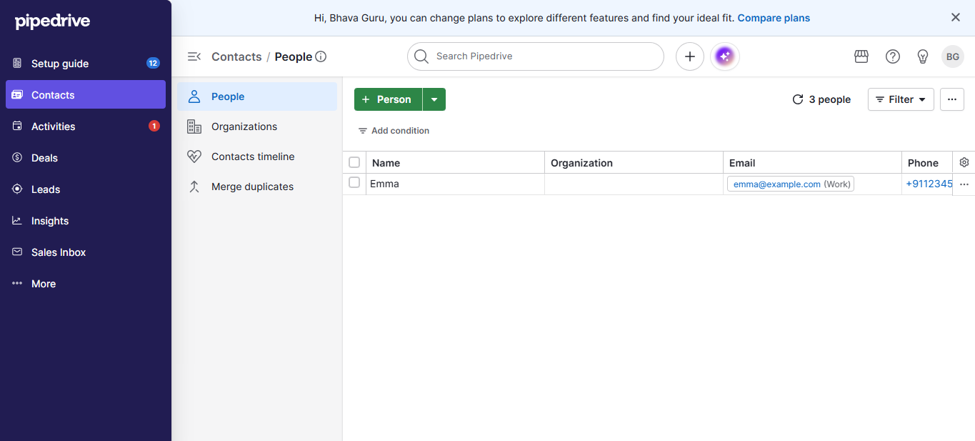
- All future leads captured through the chatbot follow the same automated workflow, ensuring your CRM stays up to date.
Verifying the Connection #
Once connected:
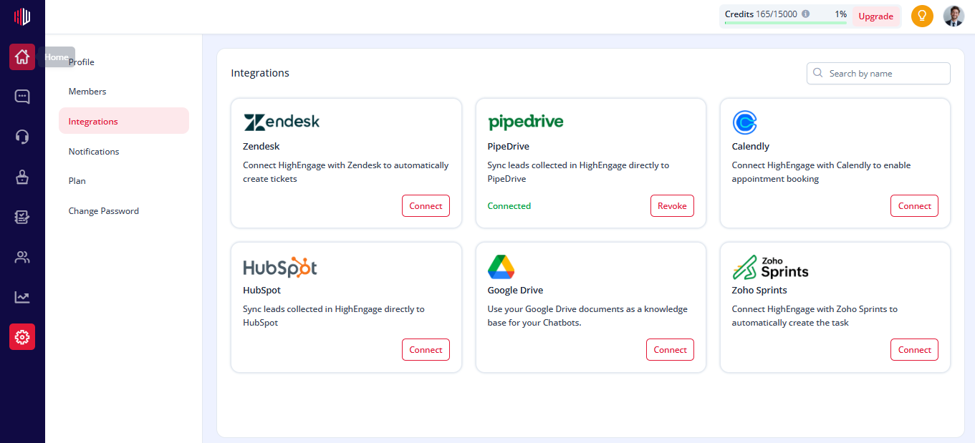
- The Pipedrive card in Settings → Integrations will display Connected.
- The Connect button will change to Revoke.
- New leads captured by HighEngage will automatically be synchronized with your connected Pipedrive account.
Revoking the Integration #
If you no longer wish to use Pipedrive with HighEngage:
- Navigate to Settings → Integrations.
- Locate the Pipedrive integration.
- Click Revoke.
Once revoked:
- HighEngage will no longer synchronize leads with Pipedrive.
- Previously synchronized contacts and deals will remain in Pipedrive.
- Lead synchronization will resume only after reconnecting the integration.
Troubleshooting #
- Unable to connect
- Ensure you are using the correct Pipedrive API token.
- Verify that your Pipedrive account has permission to access the API.
- Generate a new token in Pipedrive and try connecting again.
2. Authorization Key is rejected
- Confirm there are no extra spaces before or after the pasted token.
- Copy the token again directly from Pipedrive’s API settings page.
3. Leads are not syncing
- Verify that the integration status is Connected.
- Ensure your chatbot is successfully capturing lead information.
- Reconnect the integration if synchronization has stopped.
4. Connection lost
If the authorization expires or is revoked:
- Go to Settings → Integrations.
- Click Connect and enter a valid Pipedrive API token to authorize the connection again.
Benefits #
- Automatically sync leads from HighEngage to Pipedrive.
- Eliminate manual lead entry and reduce errors.
- Keep your CRM updated with new customer information.
- Enable faster follow-ups by your sales team.
- Centralize customer interactions and lead management.
If you have any questions, concerns, or need further clarification, please contact support@highengage.com for assistance.


